

We hope you have already read our tutorial on How to Set Up a cPanel Email Account in Android, and you have already added a built-in email widget to your Android screen.
1. Press on Inbox.
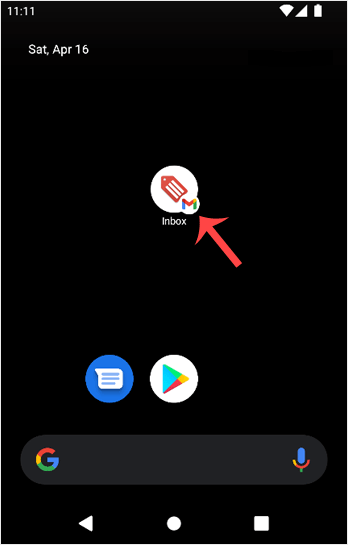
2. Pull down from the top of the screen until the little refresh wheel start spinning. It will start syncing emails.
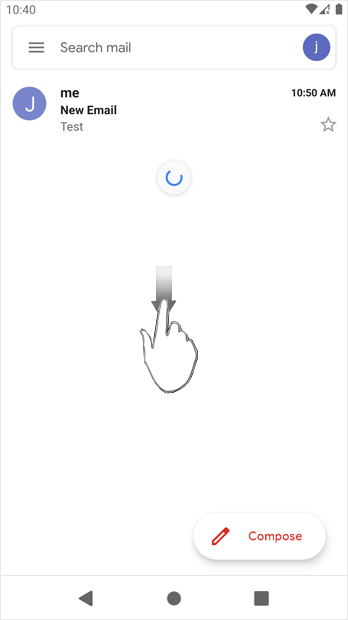
In the above screenshot, after syncing, we have received a new email.
Categories
Abuse
2
Advanced
4
Backup/Restore
4
Billing
6
Cloudflare (cPanel)
9
CloudLinux (cPanel)
10
cPanel - Control Panel
24
Databases
11
DirectAdmin
48
DNS - Nameservers
6
Domain Management
10
Email
17
FAQ
2
Files
4
FTP
9
Hosting
6
Installation Guides
1
Installing a Control Panel
6
Logs
1
Mail Filters & SPAM
8
Mobile
11
Others
3
PayPal
7
Plesk
47
Preferences
4
Security
11
SEO
3
SiteWorx (Control Panel)
58
Softaculous
69
SolusVM
18
SSL
5
Transfers
3
Troubleshooting
10
Virtualizor
19
WHM
18
WordPress
18
Categories
How to Fetch – Sync Emails in Android Print
- 0
Was this answer helpful?
Related Articles
How to Read cPanel Emails in Android
Suppose you have already added your cPanel email accounts to your Android built-in email...
How to Delete cPanel Emails in Android
We hope you have already read our tutorial on How to Set Up a cPanel Email Account in Android,...
How to Send an Email via Android
We hope you have already read our tutorial on How to Set Up a cPanel Email Account in Android,...
How to Set Up an Email Signature in Android
We hope you have already read our tutorial on How to Set Up a cPanel Email Account in Android,...
How to Set Up a cPanel Email Account in Android
You can add a cPanel email account to your Android's built-in email application. You don't need...